Phase 1 · Prepare
01
Create your event
Before you arrive on the floor, install PikScan and create the event that will group all your scans.
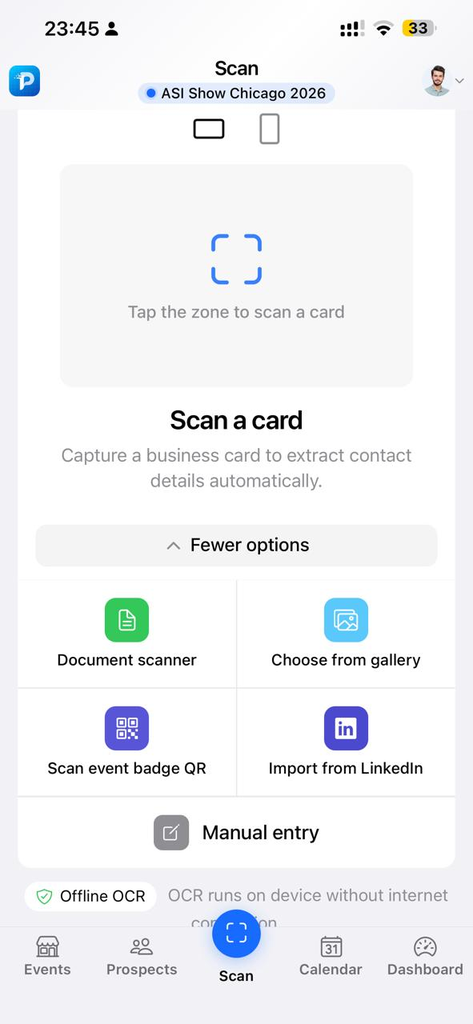
- Download the app and complete the getting-started checklist (event, card, categories, first scan).
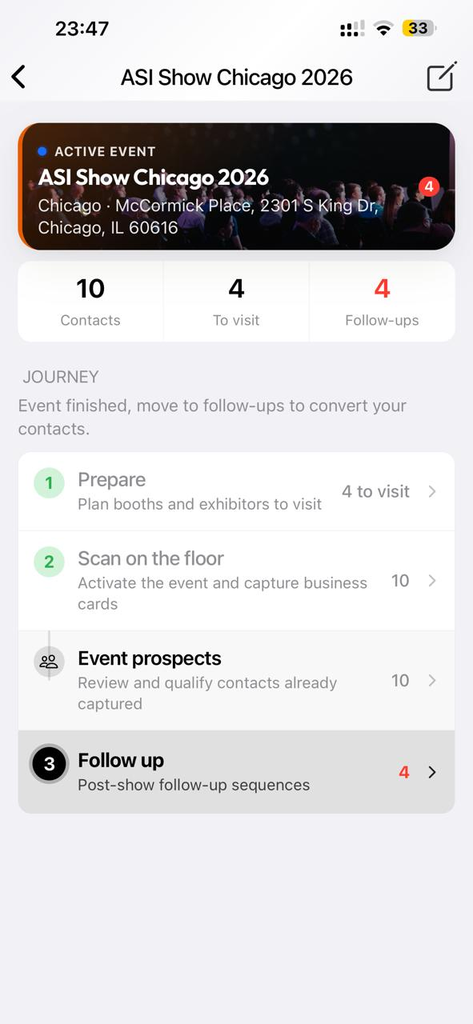
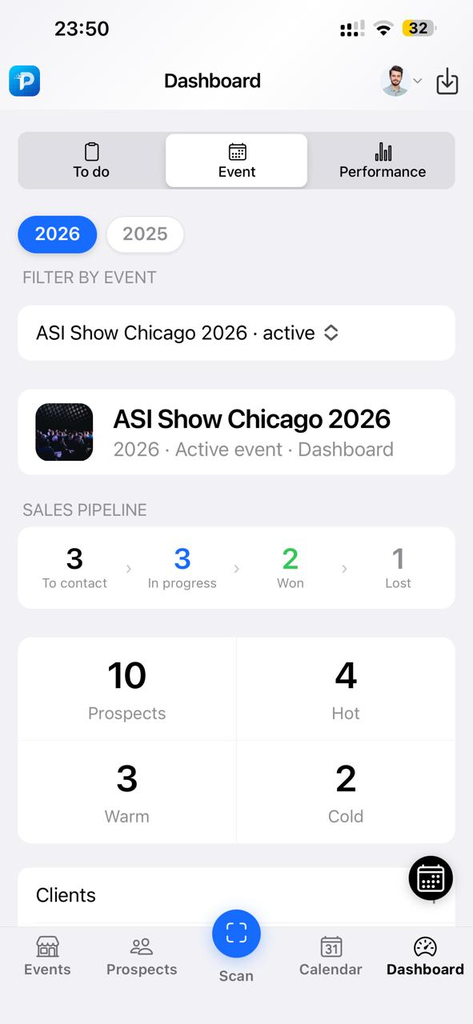
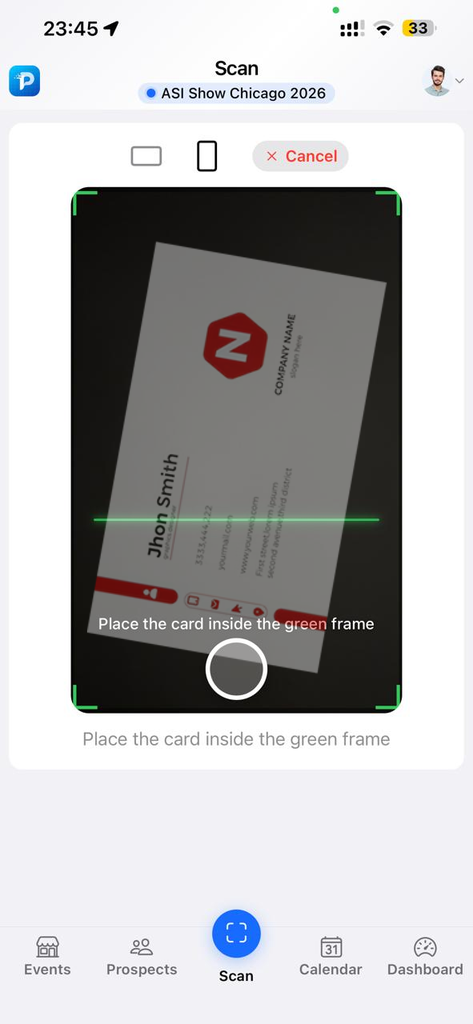
- Events tab → + button → name, city, dates, photo and optional ambiance color (e.g. ASI Show Chicago 2026).
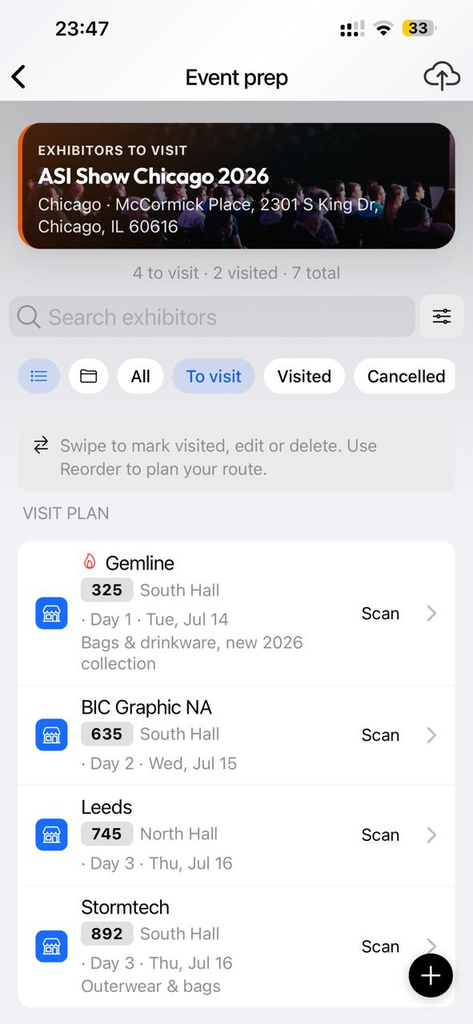
- Tap an event to open the event hub (journey: 1 Prepare · 2 Scan · 3 Follow up). Swipe left to edit or delete.
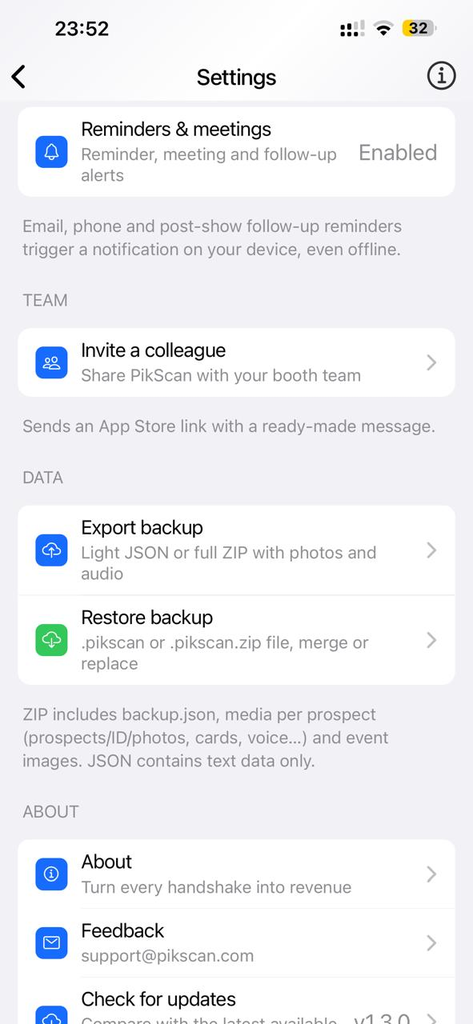
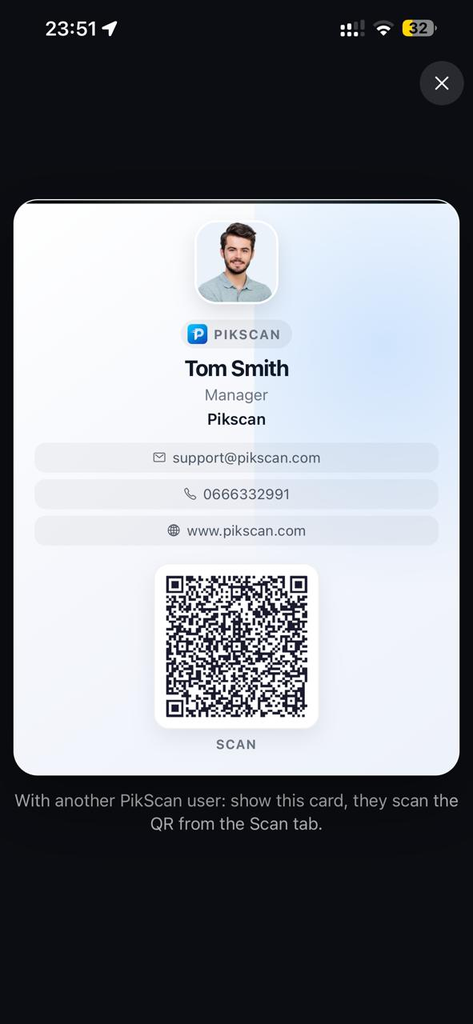
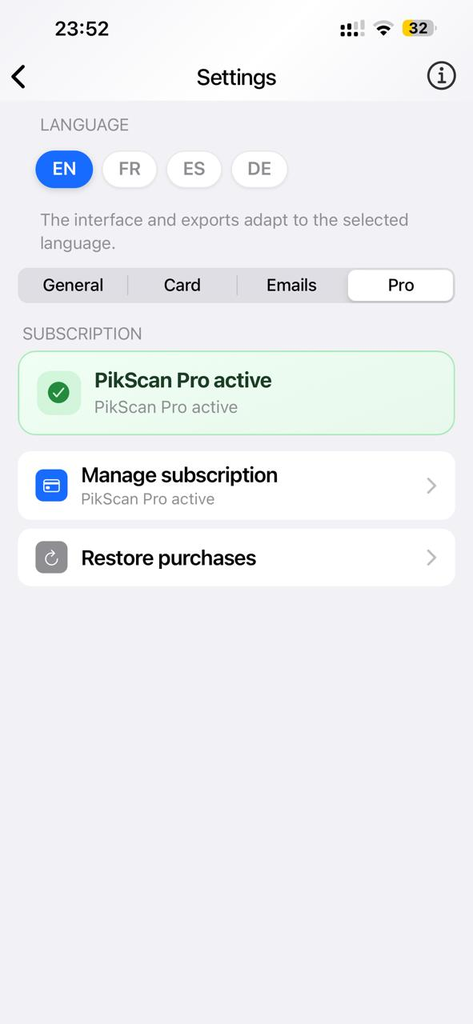
- Also set up your card via Settings → Card (CARD READY badge).